

The following article will go over how to install Node.js on Debian 9.
NodeJS
NodeJS is a website application that runs in the JavaScript programming language. It's similar to a Java script runtime.
Node.js can be used to create a variety of applications, including command line applications, web applications, real-time chat applications, and REST API servers. Most developers, however, use Node.js to create network programs such as web servers written in PHP or Java.
Preparation
There are several things that need to be prepared to do this installation:
- Have an active VPS.
- Have root access.
Point
- Update: Server
- Install Packages
- Install Firewall
- Install Node.js
- Create a Node.js application
- Testing
How to Install Node.js on Debian 9
Update Server
Login as root to the server and update the server with the following command:
Install Packages
Install some packages needed for Debian 10.
Also install the perl packages needed to install the firewall, because Debian 9 doesn't have full perl.
Install Firewall
Before starting, it is necessary to install a firewall to make it more secure. This firewall uses CSF (ConfigServer Security & Firewall). Install it with the command below:
Start and enable on-boot.
Install Node.js
For Node.js installation, this article uses PPA (Personal Package Archive), which is maintained by NodeSource. By using the PPA, you can get an up-to-date version of Node.js. Instead of using the official Debian repository, you can also choose several versions, such as Node.js v4.x, Node.js v6.x, and others. For now, the up-to-date version is Node.js v10.x.
Install Curl
Download the sh script for Node.js installation using curl.
Run the sh script.
Run the node.js installation process.
Then wait a few moments for the installation process.
To check the node.js version, you can use the command below.
V10.24.1
The package of Node.js contains node.js along with npm, so there is no need to install npm separately.
6.14.12
Create a Node.js application
For an example application that will be made, we use test. So, the test will respond to all HTTP requests. This is a sample application only. You can replace or change it with the node.js app project that you have or will create later.
Create directory apps/
Create file test.js
Then paste the script below.
In the red text, you need to change your IP-Server.
Save Dan's exit. Using a script means that the server will listen to a specific port, which is 3000.
Testing
To test the application, you can use the command below.
Server running at http://IP-Server:3000/
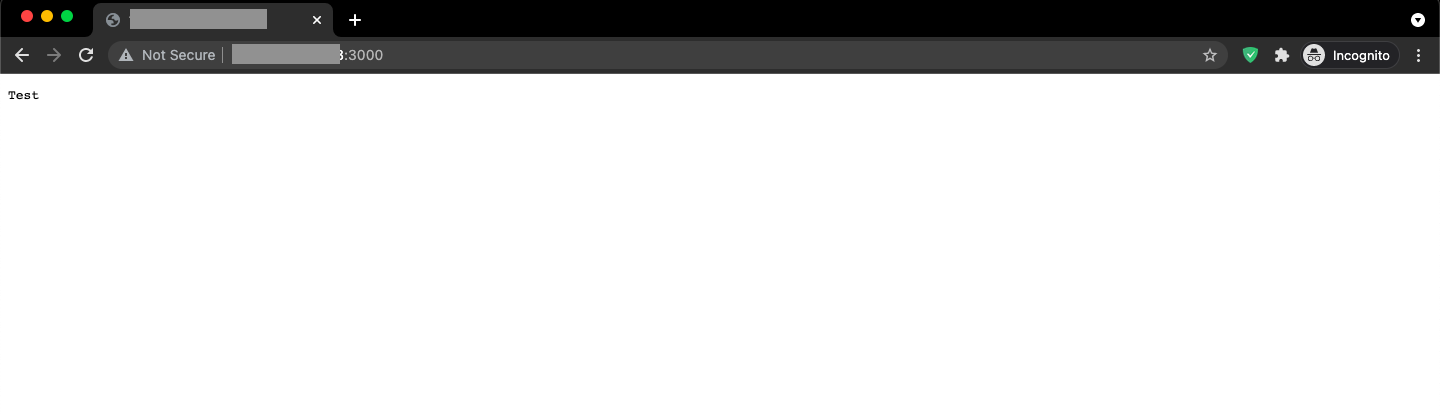
Then the result will be like below.

Post a Comment
Post a Comment