

Have you ever wondered how QR codes work or how procedural images are generated? Have you ever wanted to send someone a website link in a much cooler way? If you said yes to any of these questions, you're in luck!
In this quick tutorial, we will learn how to create a QR code in Python with qrcode, pillow, and just five lines of code.
Let's jump in!
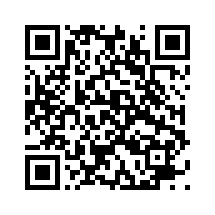
What Is a QR Code?
A Japanese technology company devised the QR code, which stands for Quick Response code, in 1994. It's a two-dimensional barcode with black patterns on a white background. This is no ordinary scribbling, though: QR codes can store massive quantities of data in a deceptively little amount of area. These black rectangles can hold links, text, and pretty much anything else you want... and can be accessible by scanning from any mobile device!
A QR code is useful because it allows consumers to quickly obtain information from a non-traditional source (e.g., on a piece of paper). Adding a QR code on a sheet of paper provides a considerably better and faster user experience than placing a website link. Due to this, QR codes are now becoming more commonly used than UPC barcodes and are found on restaurant menus, business cards, and even Superbowl ads!
Enough about QR codes; let's learn how to create one!
Setting Up
First, go to the Python code editor of your choice (we recommend VS Code), and create a new file called qr_code.py. This is where we will be writing our code.
Except for qrcode.py, you can call your file whatever you like. This is due to the fact that qrcode.py already existing as part of the qrcode library that we will use, and calling your file will override the library routines.
To start, we need to install the two libraries:
- The QR Code Library: This library lets us perform all of our QR code related operations.
- The Pillow Library: This library helps us process and save images.
To install QR Code and Pillow, run this command inside the VS Code terminal:
pip install qrcode pillowFor this tutorial, we are using QR Code version 7.3.1 and Pillow version 9.2.0.
Next, add this line of code to the first line of qr_code.py:
import qrcode This line of code makes sure that the two libraries can be used in the rest of our code since Python code runs from top to bottom in a file. We just need to import the QR code, because the pillow is implicitly imported.
Creating the QR Code
First, we want a link that we want to showcase. Let's use a classic YouTube video.
We can store this YouTube URL into a variable called website_link:
website_link = 'https://www.youtube.com/watch?v=dQw4w9WgXcQ' Next, we want to create an instance of QR Code. Since it's a Python library, we can call the package constructor to create a QR Code object, customized to our specifications.
In this example, we will create a QR code with a version of 1, and a box size and border size of 5.
qr = qrcode.QRCode(version = 1, box_size = 5, border = 5) - The
versionparameter is an integer from 1 to 40 that controls the size of the QR code. - The
box_sizeparameter controls how many pixels each "box" of the QR code is. - The
borderparameter controls how many boxes thick the border should be.
Try taking in these parameters as input, and explaining to the user how to set this up so they can create the QR code to their own specifications. Visit the documentation for more information about the parameters in qrcode.QRCode (...).
Then, the data (specifically, the link we specified before) is added to the QR code using add_data(). The QR code is then generated using .make():
qr.add_data(website_link)
qr.make()
Finally, we save this created QR code in an img pillow object using qr.make_image():
img = qr.make_image(fill_color = 'black', back_color = 'white')
- Setting the line color
fill_colorto black. - Setting the background color
back_colorto white,
Finally, we have to store and save the file. We can do this using Pillow's save () command. We specify the file name inside the brackets, which is youtube_qr.png in our case.
img.save('youtube_qr.png') Now we are done! Here’s the whole code:
import qrcode
website_link = 'https://www.youtube.com/watch?v=dQw4w9WgXcQ'
qr = qrcode.QRCode(version = 1, box_size = 5, border = 5) qr.add_data(website_link)
qr.make()
img = qr.make_image(fill_color = 'black', back_color = 'white') img.save ('youtube_qr.png')
You should see the youtube_qr.png image pop up on the left-hand side of VS Code, and you can open it to see what it looks like.
You can add this QR code anywhere you like, on your website or in an email!
Improvements
To improve this, we could do a couple of things:
- Allow the website link to be typed in using the input
()function. - Allow users to customize the QR code they generate.
- Automate the process to create multiple QR codes.
- Include more functions (or object parameters) from the QR Code library.
- Try changing the colors and styles of the generated QR codes using different drawer modules and fill colors.
- Use an application library (like Tkinter) to add a user interface.
- Check out other QR code libraries like
pyqrcode.

Post a Comment
Post a Comment